







Cursor & Clicks
Click Type
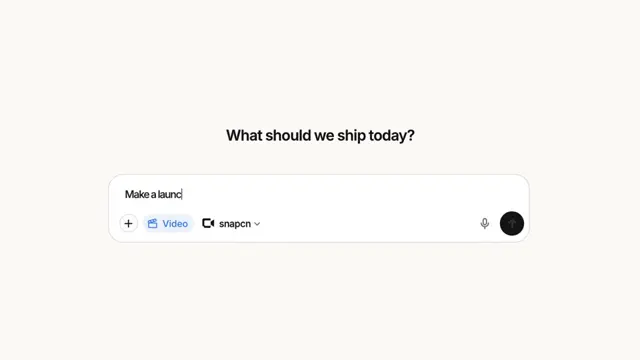
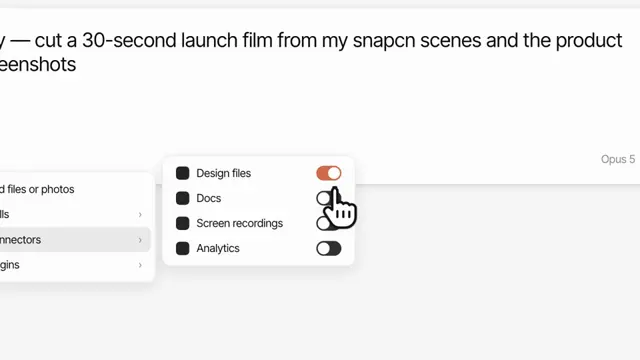
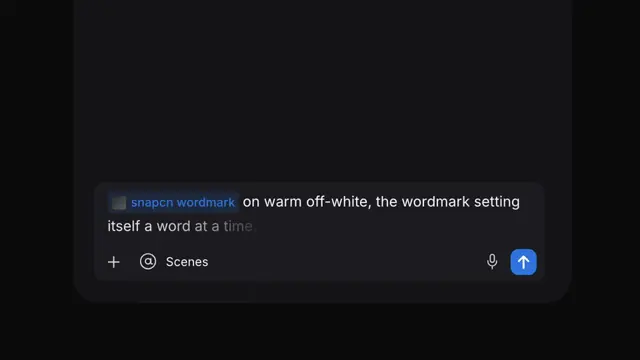
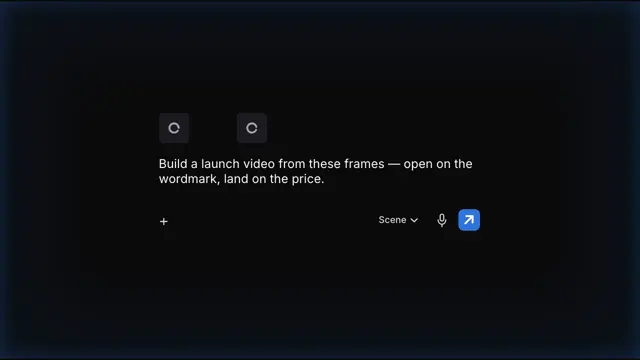
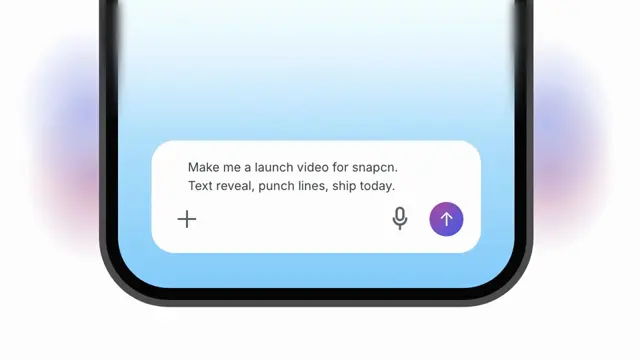
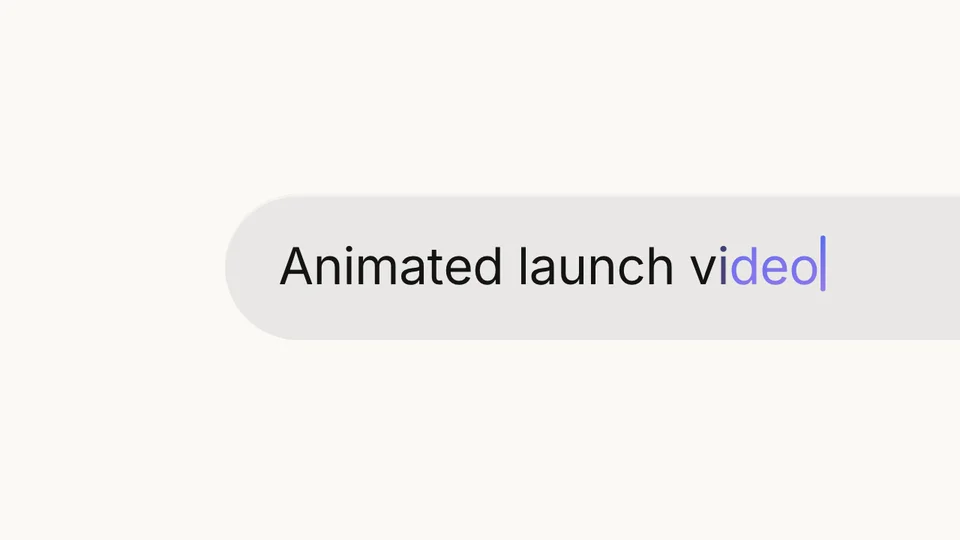
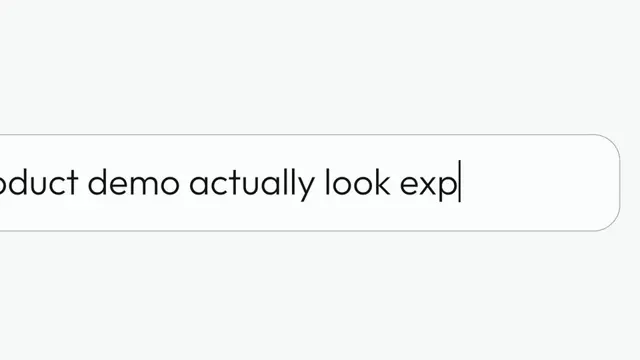
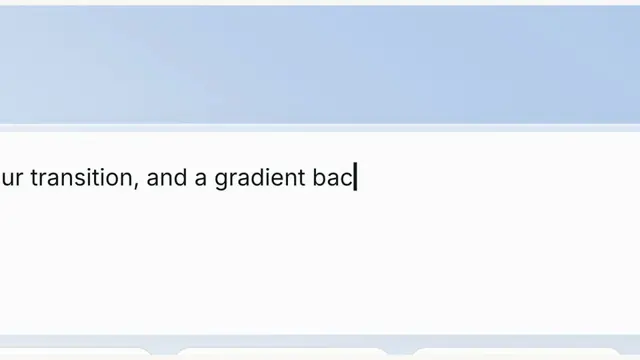
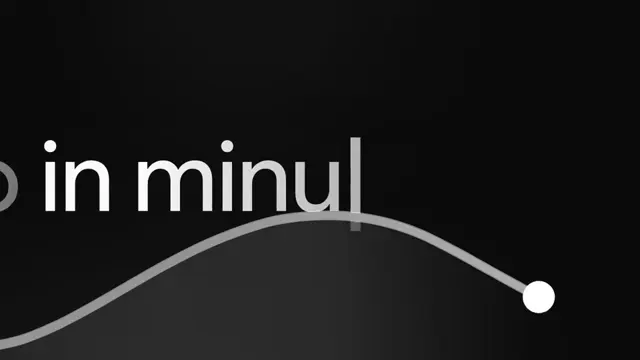
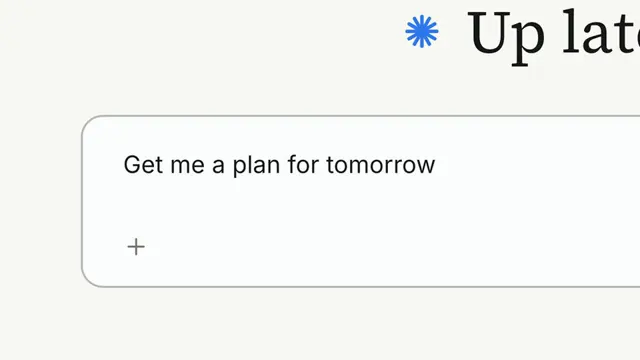
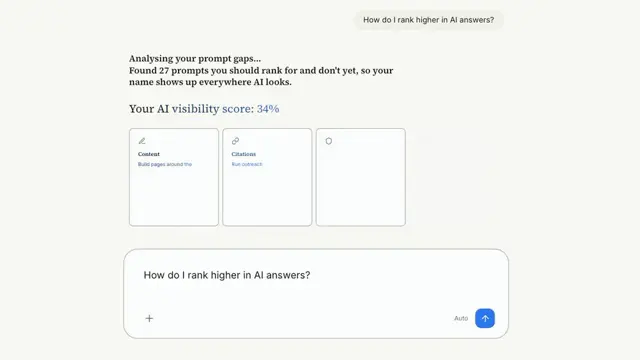
A prompt composer writes its own placeholder while a cursor flies in and clicks the field, then a hard cut into the field where the prompt types at the caret
- Type
- Animation
- Duration
- 3.4s
- Category
- Cursor & Clicks
- Source
- snapcn
Install
A prompt composer in Prompt Send's style: a glass panel over a soft accent wash, a white writing surface, two icon buttons and a round send button. The placeholder writes itself while a cursor flies in from the edge and clicks the field. Then the shot cuts hard into the field, the placeholder is gone, and your prompt types at the caret. Use it for the "just describe it" beat of an AI product video.
How it moves
It cuts with Prompt Send. Same glass panel, same writing surface, same wash, all from your theme. Change the wash with accentColor. The send button arms to ink once the first letter lands.
Two shots, one card. The close-up is the same card under a constant camera, pinned on the first letter. Nothing scales while it moves, so the type stays sharp.
The cursor stays in the wide shot. It clicks, and the cut leaves it behind, the way a real screen recording would.
Typing is a keystroke a frame. A space costs an extra beat. The caret holds solid while it types and blinks while it waits.
The length depends on the prompt: clickTypeFrames(prompt) returns it.
Installation
$ pnpm dlx shadcn@latest add @snapcn/click-typeNeeds an existing Remotion project and a components.json. Two-minute setup if this is your first snapcn component.
Component code
The exact file shadcn add copies into your project.
Usage
// src/Root.tsx
import { Composition } from "remotion";
import { ClickType, clickTypeFrames } from "@/components/snap-cn/click-type";

const prompt = "Build me a booking app";
const Scene = () => <ClickType prompt={prompt} />;

export const RemotionRoot = () => (
  <Composition
    id="ClickType"
    component={Scene}
    durationInFrames={clickTypeFrames(prompt)}
    fps={30}
    width={1280}
    height={720}
  />
);
Props
| Prop | Type | Default | Description |
|---|---|---|---|
placeholder | string | "Describe what you want to build..." | Muted text that writes itself in the wide shot |
prompt | string | "Build me a marketing site" | Typed after the click, in the close-up |
accentColor | string | — | The wash behind the composer. Defaults to the theme's primary |
hint | string | "New suggestion" | Small label at the field's bottom-left |
theme | Partial<SnapCnTheme> | — | Design-system token overrides. Anything you leave out falls back to the shadcn defaults |
mode | "light" | "dark" | — | Which end of the design system to resolve tokens against |
Frequently asked questions
How do I add Click Type to a Remotion project?
Run npx shadcn@latest add @snapcn/click-type. The source is copied into components/snap-cn/ (or wherever your components.json points) with anything it depends on, and you own the code from then on — there is no runtime package to keep installed.
What is Click Type?
Click Type is a Remotion click and type prompt animation for React. A prompt composer writes its own placeholder while a cursor flies in and clicks the field, then a hard cut into the field where the prompt types at the caret.
What do I need before using Click Type?
An existing Remotion project (npx create-video@latest) with a components.json. shadcn init does not recognise Remotion, so the installation guide has you write that file by hand — it takes two minutes. The component is MIT licensed and free.